
It is incredibly frustrating when an update that’s supposed to improve your site ends up making it look like a jigsaw puzzle put together in the dark. If your layout is wonky, your fonts have vanished, or your mobile view is a disaster, don’t panic, it’s usually just a technical “hiccup” between old and new files.
Usually, your site is trying to display the new version of Elementor using old saved instructions. This mismatch happens because of :
- Stale CSS Cache : Which means your site is clinging to old design rules.
- CDN Lag : Services like Cloudflare haven’t realised you updated yet.
- Plugin Tiff : Your optimization or theme files aren’t playing nice with the new code.
Quick Fix :
-
Force a “Regenarate”
This is the “Have you tried turning it off and on again?” of Elementor. It forces the plugin to rewrite it’s design files from stratch.
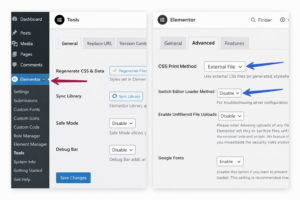
> Go to Elementor -> Tools
> Click Regenerate Files and Data -
Clear Every Single Cache
Your site layers of memory. You need to wipe them all to see the fresh changes :
>Plugin cache (WP Rocket, LiteSpeed, etc.)
>Hosting/ Server cache (Bluehost, SiteGround, etc.)
>Browser cache (Try viewing in an Incognito window)
>CDN (Purge everything in CloudFlare) -
Switch the CSS Method
If your styles still aren’t loading, Elementor might be struggling to write flies to your server.
>Go to Elementor -> Settings -> Advanced.
>Change the CSS Print Method to “External File” (or toggle it to “Internal” if you’re already on External). -
Pause the “Minification”
Optimisation plugins that shrink your code often break things during an update. Try disabling your CSS/JS minification settings temporarily to see if the site pops back to normal.
-
Audit Your Mobile Toggles
Sometimes updates reset specific “Hide on Mobile” settings. If your site looks great on desktop but empty on phones, double-check your Responsive visibility settings in the Advanced tab of your widgets.
Safety First : Never update Elementor, your Theme and WordPress core all at the same time. That makes it impossible to know which one broke the site. Update one, check your pages, and then move to the next which is the easiest way to avoid a total site collapse.
